Getting started

Up and running in three steps.

No complicated setup. Just more comfortable Windows text.

  1. 01

    Download & install

    When sales open, download the Windows installer from your order and run it.

  2. 02

    Activate your licence

    Open Font Size Tweak Pro and enter your licence key at the activation screen. Activation needs an internet connection.

  3. 03

    Make Windows yours

    Choose a comfortable size, preview the sample, then apply when you are ready.

Font Size Tweak Pro is not available to buy yet.No eligible Stripe installer or Stripe desktop activation is available yet. Sandbox purchasers can check purchase status in the original checkout browser. For help, contact support@adamj.link.
Explore the free version

Good to know: Pro adjusts five classic Windows text areas, not overall display scaling. Preview is illustrative, and some changes may need a sign-out and sign-in to refresh.

A look inside Pro

Your first adjustment, in pictures.

Follow the controls in the current pre-release app. These example sizes are a starting point, not a recommendation for every display.

Home

Start with a comfortable size.

Select Comfortable, Larger or High resolution, or use Adjust all areas to choose one size for all five areas.

Home shows current and selected values. The pending bar makes it clear that Windows text is still unchanged.
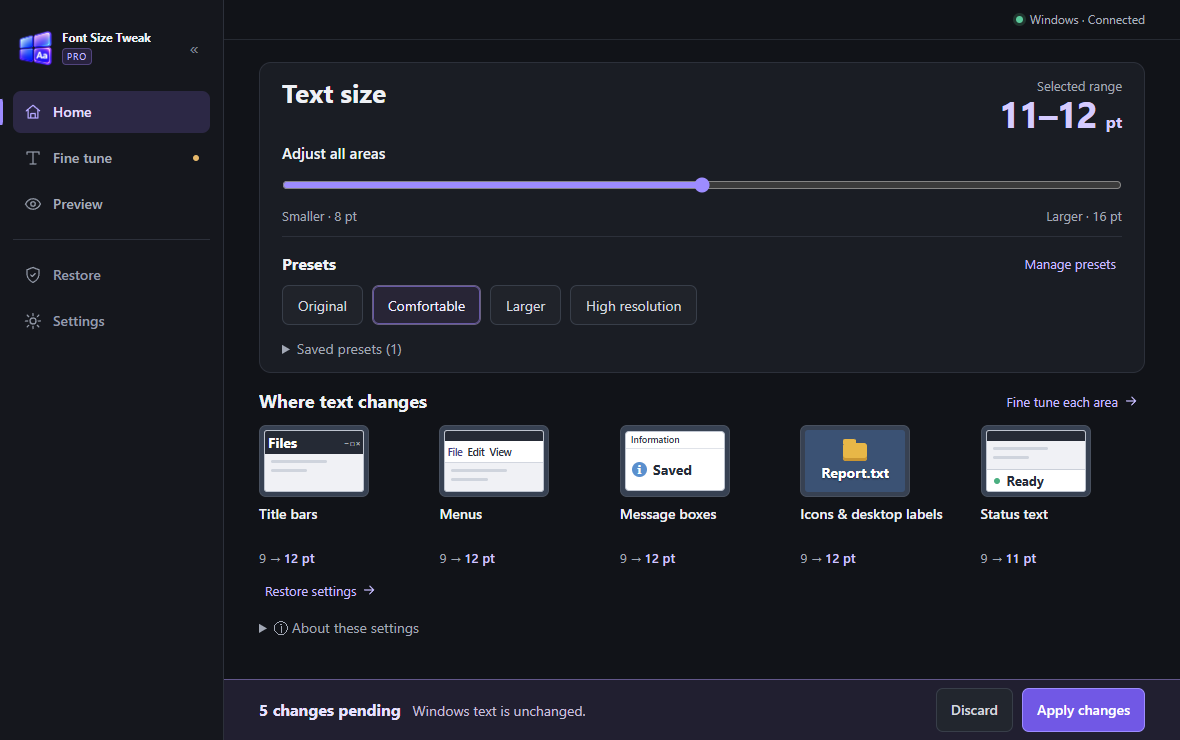
Home with the Comfortable preset selected, 9 point current sizes and proposed 11 to 12 point sizes.
Comfortable selected, before Apply. Open image for full size.

Fine tune

Give each area its own size.

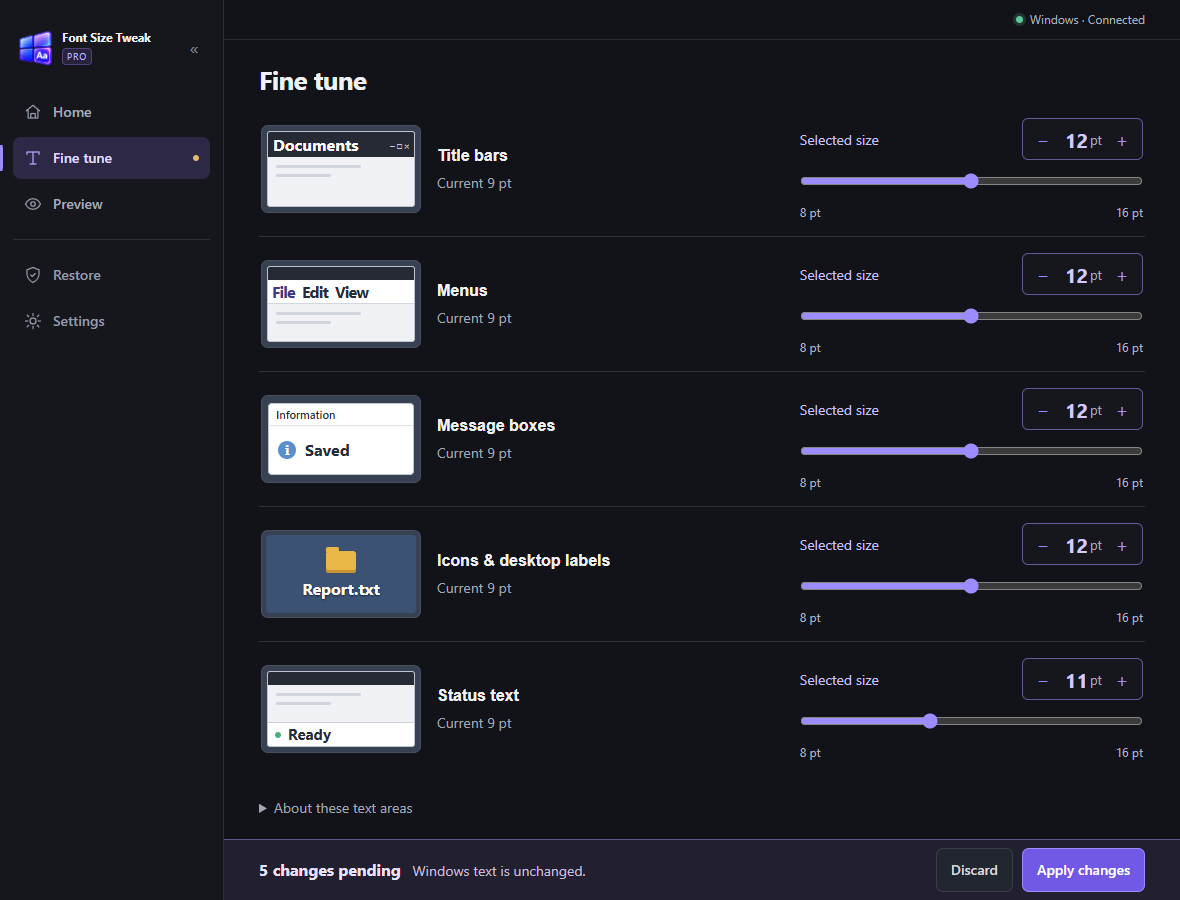
Open Fine tune and use a slider or the minus and plus buttons beside a text area.

For example, start with Comfortable and increase just Menus if they still feel too small. Each control changes a selected value; it does not apply it yet.

Fine tune showing all five text areas, their current sizes, and separate selected-size sliders and minus and plus buttons.
Adjust one area while leaving the others as selected.

Preview & apply

Compare before you commit.

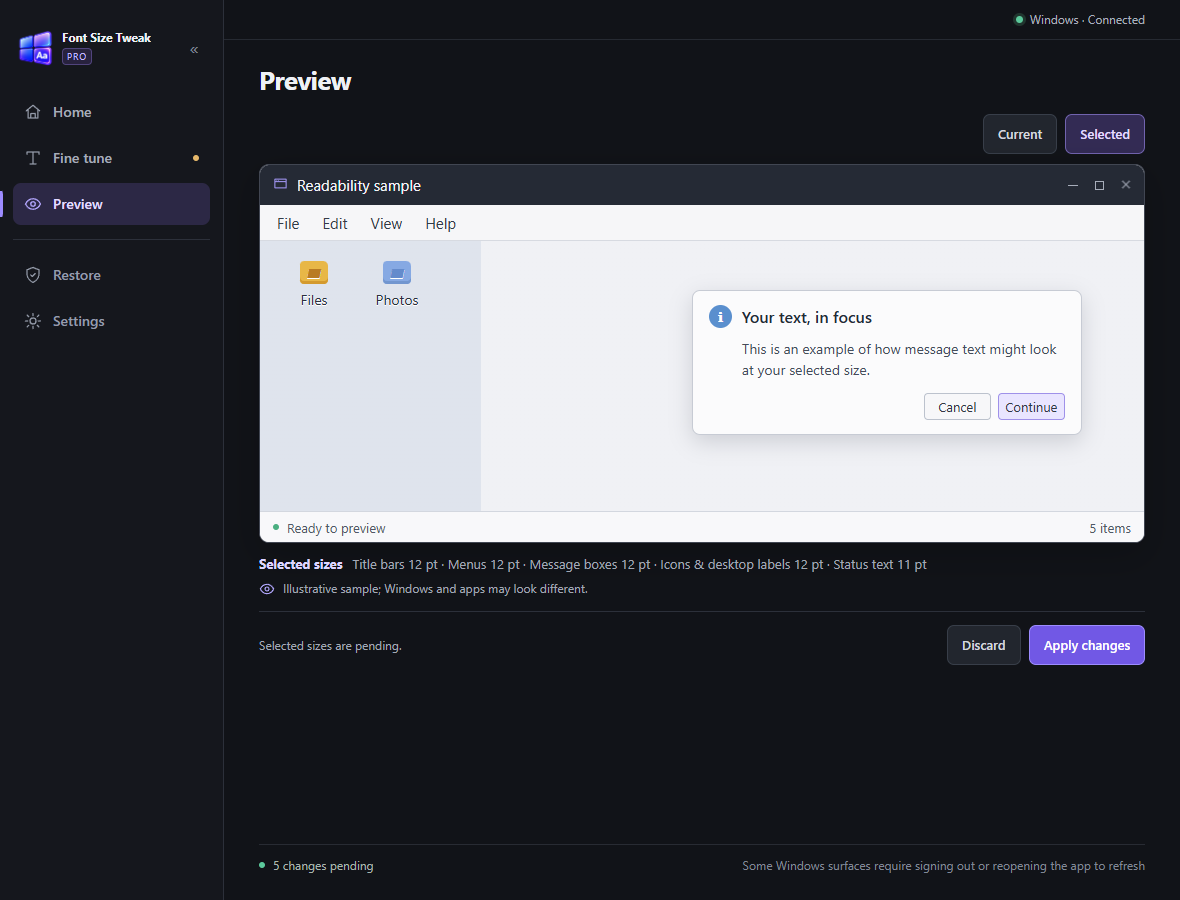
Open Preview. Switch between Current and Selected to compare the illustrative sample.

Choose Apply changes when ready, or Discard to return to current sizes. Some Windows surfaces need a sign-out and sign-in or an app restart to refresh.

The preview is illustrative; Windows and individual apps may look different.

Preview showing Current and Selected controls, the illustrative sample, selected values, Discard and Apply changes.
A real app screen containing an illustrative sample.

Saved presets

Keep a setup you like.

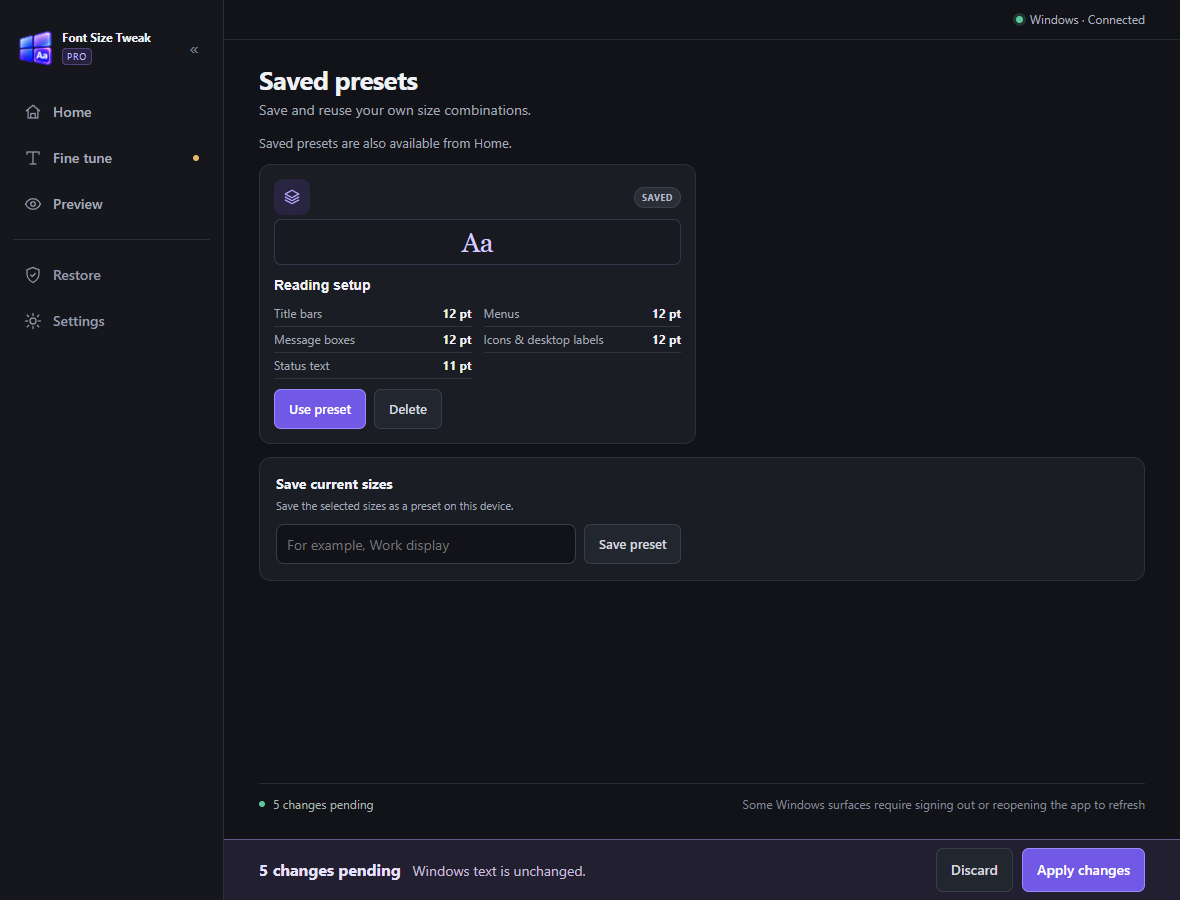
From Home, choose Manage presets. Enter a name under Save current sizes, then choose Save preset.

This saves the selected combination on this device. Use preset selects it again; choose Apply changes separately to change Windows.

Learn about Undo, History and Restore Original
Saved presets with a Reading setup example and controls to reuse it or save another selected combination.
Reading setup is a local example preset.
A little more detail

Need help?

Quick answers for the moments that need a closer look. Visit Support for the full guidance.

Installation and Windows prompts

Pro installs per user. If a security or publisher prompt differs from the release guidance, stop and ask for help.

Installation help →
Licence keys and activation

Activation needs an internet connection and a compatible app. Stripe licence keys arrive in a separate licence email, not the Stripe payment receipt. Never send your key to support. Stripe desktop activation is not available yet.

Licence and activation help →
Adjusting and restoring

A selection changes proposed values; Apply makes the change. Original settings are captured before the first applied change.

Adjustment and restore help →
Updates and reinstalling

In-app updates are not available yet. When sales open, use the order for the latest full installer. Keep app data to retain presets, History and Original backup.

Updates and reinstall help →